
If you’re commissioning a series of AI presenter training videos, start with one lesson. Use the pilot to approve what the lesson teaches and how the series will look and sound. Watch the presenter, voice, setting, camera and supporting visuals together before you commit to the rest.
If you’re still deciding between a presenter, 3D animation and motion graphics, start with our guide to AI training video formats. This brief picks up once you’ve chosen a presenter and want to make the first episode.
Pick one action for the pilot
Choose a lesson that represents the rest of the series. If most episodes teach a workflow, pick a pilot where the viewer has to complete a task. That lets you test the presenter, the demonstration and the instructions together.
Lock the visual style and voice in the pilot
Ask to see a short sample from your script. Review how the presenter speaks and moves, what the setting says about the lesson and how the supporting material appears on screen.
- Presenter and realism. Choose an avatar model that suits the tone of the lesson. A stylized character may fit a scenario. A lifelike presenter may suit a company introduction or a sensitive subject. Compare a sample of the actual delivery, including expressions, gestures and how closely the mouth follows the voice.
- Voice and delivery. Choose the voice, pace and tone. A calm, reassuring delivery feels different from a lively welcome. Test how the presenter says names and technical terms.
- Setting and camera. Decide what the setting should convey. A studio can feel like a formal broadcast. An office, a recreated work environment or a simple backdrop can make more sense for the lesson. Choose a fixed frame, a subtle camera move or a cut to a different angle. For a software walkthrough, a steady host and a clear close-up of the interface may be all you need.
- Supporting material. Share your approved slides, screenshots, brand assets or footage. Decide what to show full screen, beside the presenter or as a graphic. A quick label may be enough for one step. Another might need an animated diagram or a scene that plays out around the presenter.
Choose a level of production you can carry through the series. A fixed setup with a few graphics is easier to repeat. Multiple environments, custom camera moves or effects give you more ways to show the lesson and add production work. Approve the version that fits the subject and the number of lessons you need.
Multi-location AI presenter demonstration. The same presenter can carry the message through different environments.
Veritas | What is whole genome sequencing? In this portfolio example, the presenter moves through a bright, open space while key terms appear beside her. If your lesson introduces unfamiliar vocabulary, use text to highlight the terms as they come up and give viewers time to read them before the next point.
Example pilot brief for employee onboarding
Imagine your team wants new hires to know how to report an IT issue. Here’s what you could give the studio for that first lesson.
- Source material. The approved reporting instructions, a clean example of the form and the terms employees will see on screen.
- Look and sound. A lifelike presenter with a calm, conversational voice in a simple office setting. Keep the camera steady for the introduction and cut to a full-screen view when the form appears.
- What the presenter does. Explain when to report a problem and what information to have ready. Then show one example submission with the form in close-up.
- What to approve. Check the script and demonstration against the real process. Review the host, setting, captions and screen text together in the pilot. Ask a new hire to show you where they’d start and what they’d enter.
- What carries over. Keep the opening, the presenter and the way instructions appear on screen. Swap the demonstration when the lesson changes. Agree who can approve a replacement if the form changes later.
The setting can also become part of the demonstration. In our Hurricane film, the storm enters the simulated studio while the presenter explains it. The effects let viewers see what the presenter is describing.
Decide what repeats across the series
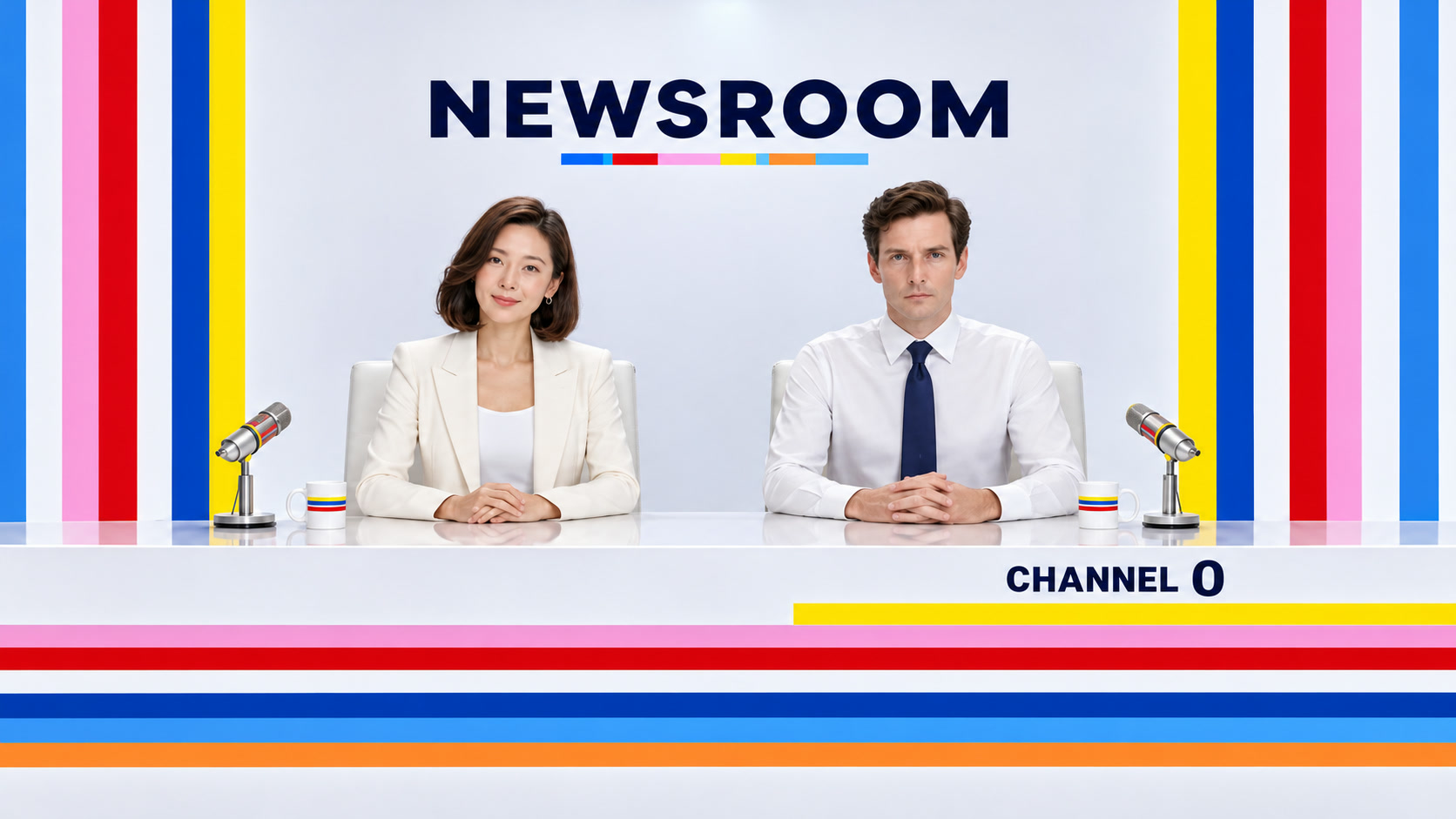
In our Channel 0 Newsroom trailers, the presenters, white desk and bands of colour give the programme a recognisable setting across separate sequences. It’s an example of how a presenter format can carry an identity from one video to the next.
Channel 0 Newsroom format demonstration. Watch how the desk, colour and framing give the presenter format a consistent identity.
Save the approved look and sound as a reference for the rest of the training series. Record what stays fixed, such as the presenter, voice, camera treatment, graphics and captions. Then note what can change with each lesson, such as the location or how you demonstrate a task.
Decide who can approve and update the pilot
Agree who signs off on the look and sound of the pilot. If you’re using a real person’s likeness or voice, agree on their permission and the intended uses. Decide how you’ll tell viewers about the AI presenter where that matters to the audience. Give your subject expert the script and visuals to review, especially if the lesson covers a technical process or workplace policy.
Before making the remaining episodes, show the pilot to a few people who represent the audience. Ask them to explain the action back to you. Their answers can help you decide what to change in the script, demonstration or pace. Agree who owns updates and which parts of the video are likely to need replacing when a process changes.
A brief you can use for the first episode
- Audience and action. Who is watching, and what should they be able to do afterwards?
- Look and sound. What level of realism, voice, setting and camera style fit the lesson?
- What to show. Which approved materials will you use, and when should viewers see them?
- What repeats. What should look and sound familiar from one episode to the next?
- Review and updates. Who signs off, who can approve use of a real likeness or voice, and what might need updating later?
See more examples on our training video production page. If you have one lesson in mind, send us your audience, topic and timeline. We can work out what to show in the pilot and what’s worth carrying into the rest of the series.